
Product Introduction
1.1 Product Capabilities
TIP
Creaibo is an AI productivity tool built on large-model capabilities for content creators, helping every creator express ideas faster and with less friction.
1.2 Use Cases
Typical creation scenarios include, but are not limited to:
• Pre-creation phase: you have an idea for copy, images, or video, but struggle to decide what to make.
TIP
Use Creaibo to generate creative directions.
• Mid-creation phase
1. You already have inspiration but do not know how to plan it.
TIP
Use the Creaibo Inspiration Canvas to co-write outlines and scripts.
2. Your content lacks analysis and rhythm planning.
TIP
Use the Creaibo editor to refine and optimize.
Product Guide
Before we begin, we will ask about your core creative direction and style (it only takes a minute). This helps the model deeply understand your needs and tone.
Navigation Page
When you land on the Creaibo home page you will first see the navigation page (fixed on the left side). It provides shortcuts such as:
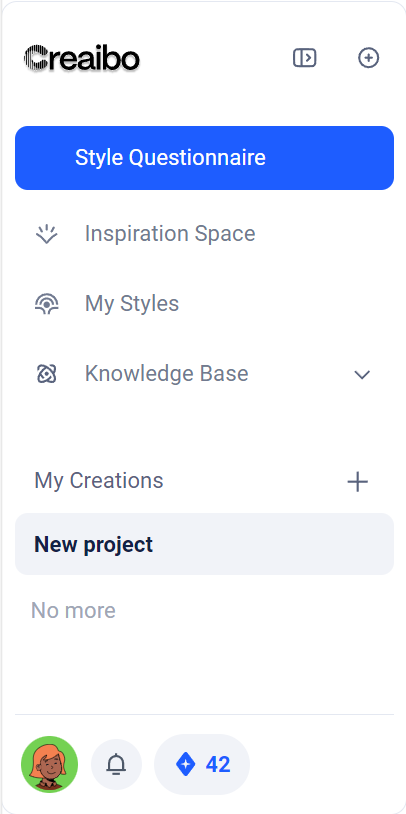 |
|
Quick Start
Follow these steps to build a workflow quickly:
My Creations → Get Inspiration → Inspiration Topics → Inspiration Analysis → Start Creating
Product Tutorial
- Basic Module 1: Fundamentals
- Basic Module 2: Advanced Operations
- Basic Module 3: Case Walkthroughs
⛱ Basic Module 1: Fundamentals
✅ Cold Start Method
Does AI have MBTI? Upload your work and the AI can guess it.
As a companion-style creative AI, Creaibo is built on personalization. On your first visit you will complete a critical “persona cold start” flow. It is more than registration—it gives your AI partner an MBTI-like profile so it feels human. Here is how to run the cold start:
1. First login: After logging in, the default aibo greets you like a friend. It will ask about your main creative fields, preferred platforms, and habits so it can align with your goals from day one.
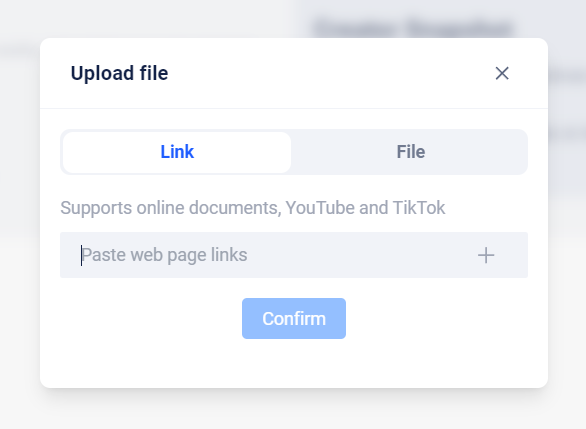
2. Upload work: Next, upload work that represents your personal voice. It can be an article, video, or link.
a. aibo currently supports mainstream platform portfolios and profile links, with more coming soon.
b. If a link cannot be parsed, download the work locally and upload the file instead.
3. Wait for parsing: aibo will analyze your work in depth, extracting your “creative personality” and writing habits.
4. Style adjustments: After initialization you can keep fine-tuning the style center.
a. Select pre-built style templates to improve your tone.
b. Upload more samples to diversify your style palette.
c. Or create a fully custom style with manual tweaks.
d. Remember to click “Update Style” so all future creations inherit the changes.
✅ Personalization
The “My Style” module is the control center for aibo’s persona and expression. You can keep training aibo so it stays in sync with your style or explores new voices.
- Whenever you publish a new piece you like, return here, upload it, and click “Update My Style”. aibo folds it into its model so the tone evolves with you.
- Power users can turn on “Custom Style” for manual, fine-grained controls.
 | 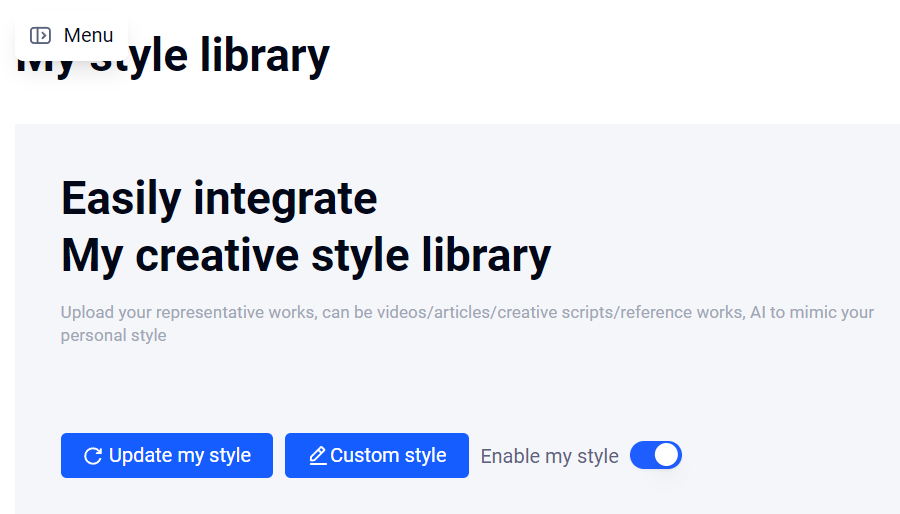 |
- Once analysis finishes, the system outputs a visual “Style DNA Report” with a core map showing your stylistic makeup.
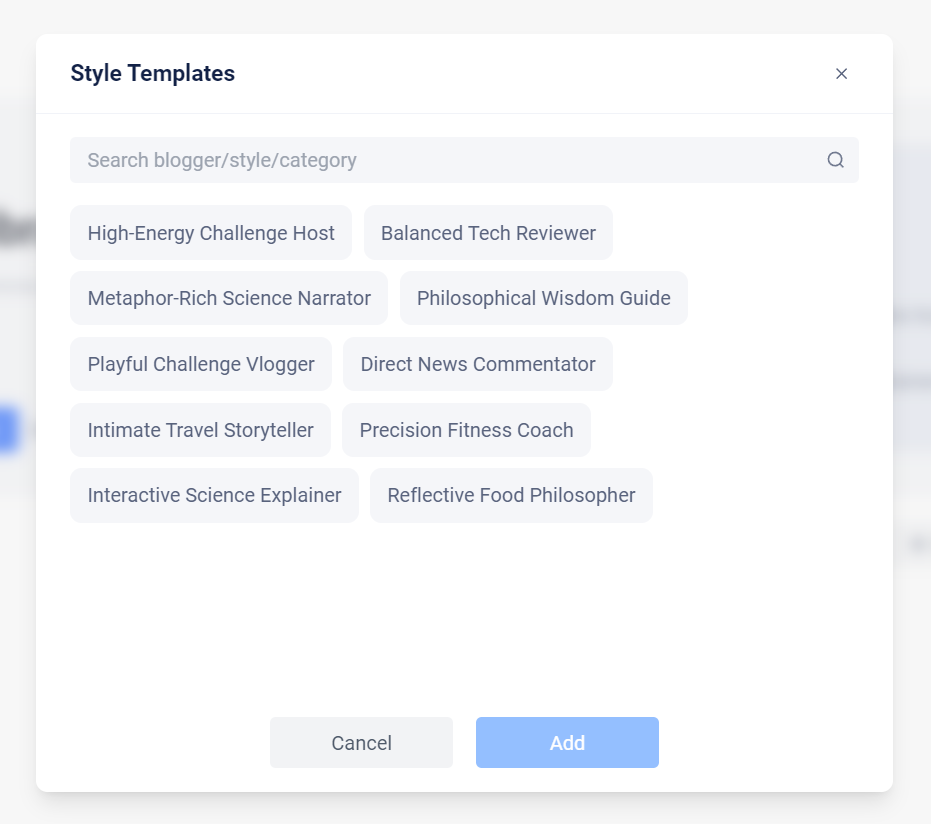
When a project needs you to go beyond your usual tone or borrow elements from other successful creators, open the powerful “Style Template Library”.
We curated hundreds of pre-analyzed language styles. Pick any template, merge it with your own Style DNA, and craft a hybrid voice for more creative possibilities.
3. Supported formats in “My Style”
| Category | Supported types | Notes |
|---|---|---|
| Local file | Word, PDF, TXT | You can upload up to six files at a time. |
| Online URL | Bilibili (profile/video), Douyin, Xiaohongshu, WeChat MP, Zhihu, etc. | If a link fails, download the work locally and upload. |
✅ Knowledge Base Usage
aibo’s knowledge base solves factual errors and hollow content at the source. During creation, aibo automatically cross-references sources, and one of them is the knowledge base.
At the start of every project you can choose which knowledge bases to bind. aibo then applies them throughout the workflow.
The knowledge base console has two sections
- My Knowledge Base: Upload any document—industry reports, academic papers, personal notes—to supply domain expertise.
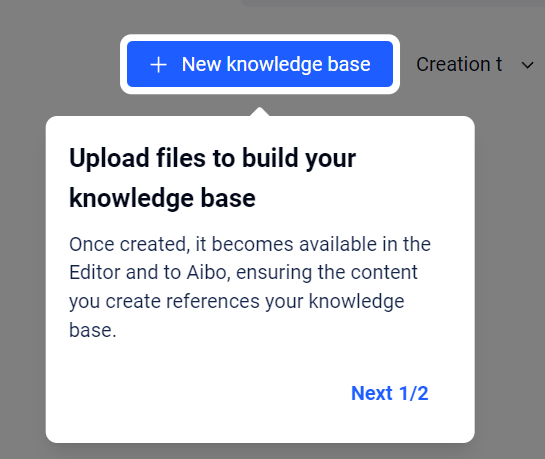 | 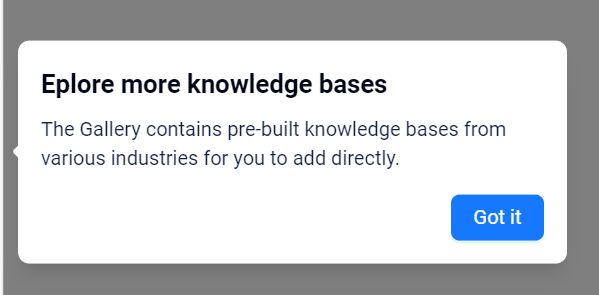 |
These materials are private to you.
You can also share a knowledge base publicly to grow together with the community.
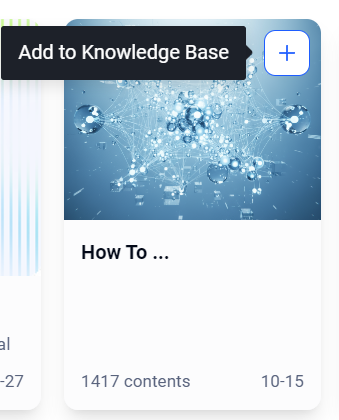
- Knowledge Base Plaza: Curated domain packs and public knowledge bases from other creators that you can bookmark and reuse.

Search for the knowledge base you need.
Click “Add” in the top-right corner to make it available in the editor.
 | 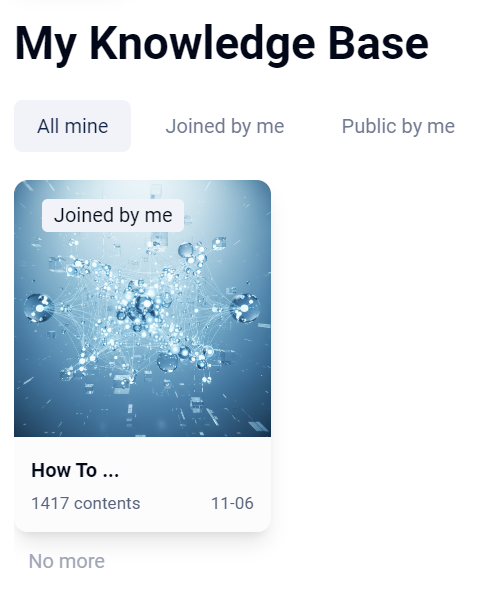 |
How do you call a knowledge base while creating?
1. Project binding: When a new project starts you can load one or more knowledge bases. aibo prioritizes them when searching for evidence.
a. Select the knowledge base you want to add.
b. Close the dialog to finish loading.
c. Later, click “Knowledge Base” at the top of the editor to add or remove more.

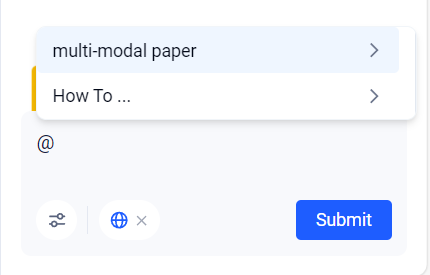
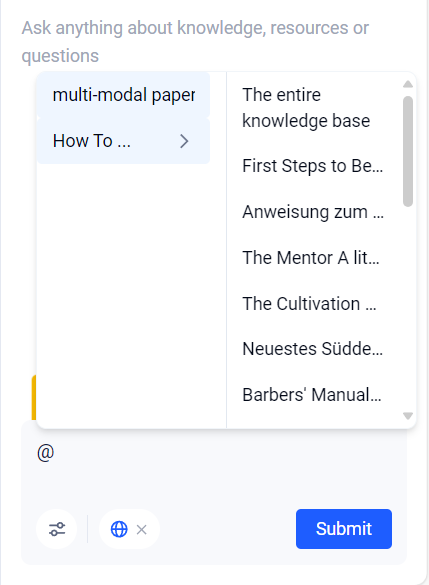
2. Precise @-reference: Inside the editor, type @ to call up a list of files so you can attach a specific document as context for the current paragraph.
 |  |
3. Smart citations: When aibo references information from your knowledge base, the system automatically annotates it so you can trace the source.
✅ Inspiration Canvas Workflow & Advanced Usage
The Inspiration Canvas is Creaibo’s core strategic planning tool. It is a structured workflow that turns vague ideas into market-ready content blueprints backed by data.
1. Capture inspiration
Creaibo offers three ways to spark ideas:
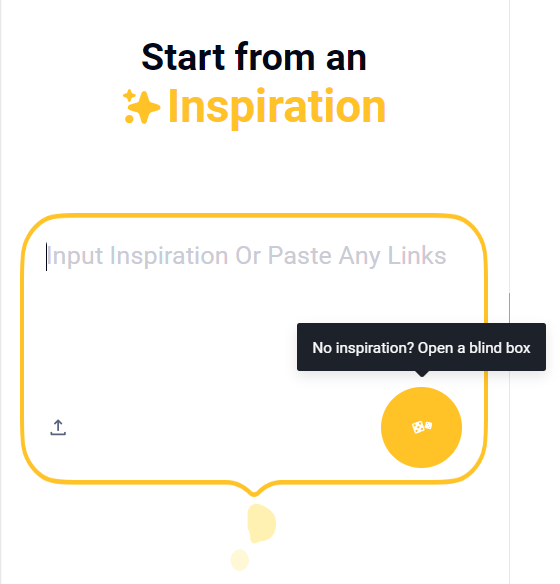
a. Direct input: Paste a word, sentence, article, webpage, or video link (for example https://openai.com/index/sora-2/). aibo turns it into three relevant inspiration cards.
b. Inspiration blind box: When you feel stuck, open the blind box. aibo recommends personalized inspiration based on your Style DNA and history.
 | 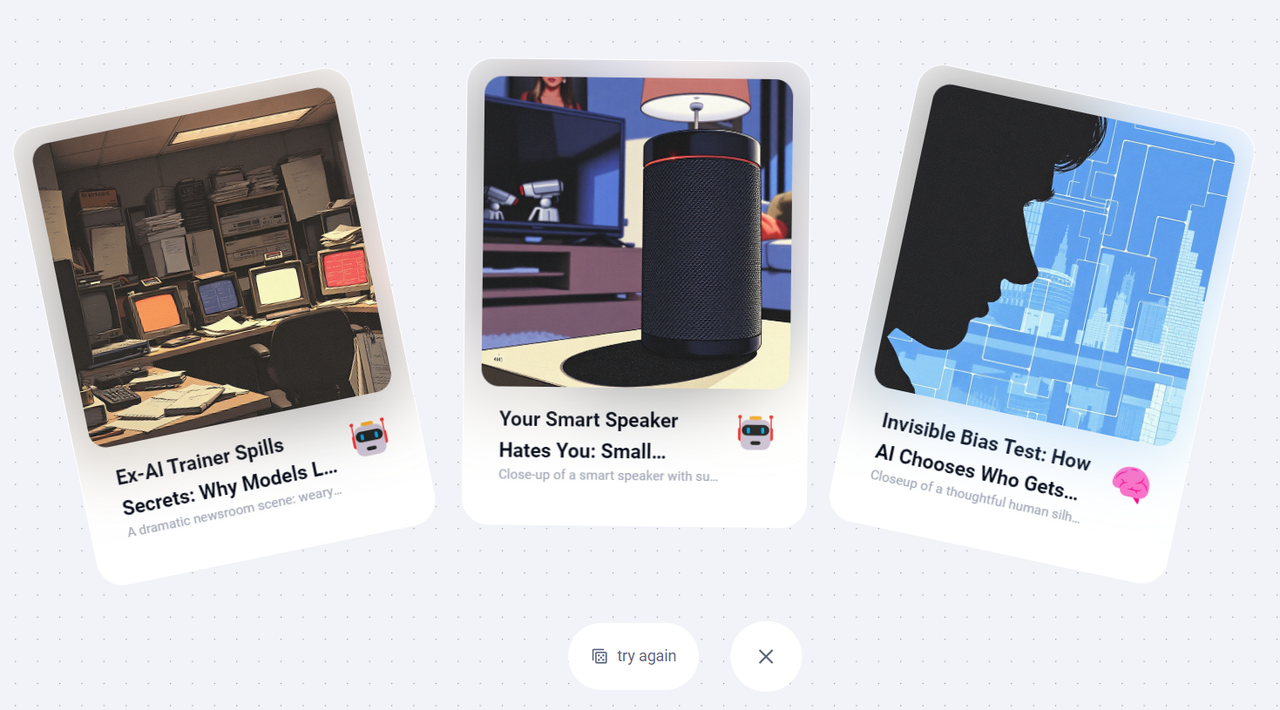 |
c. Inspiration archive: Cards generated via blind box but not used are stored in “Inspiration Finds” for later.
2. Inspiration Canvas
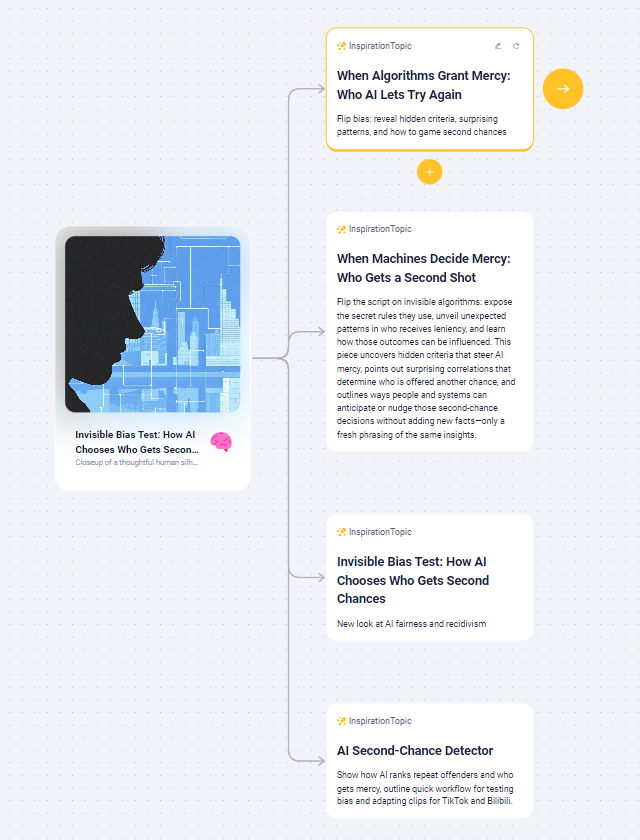
Pick a card to enter a left-to-right, layered canvas:
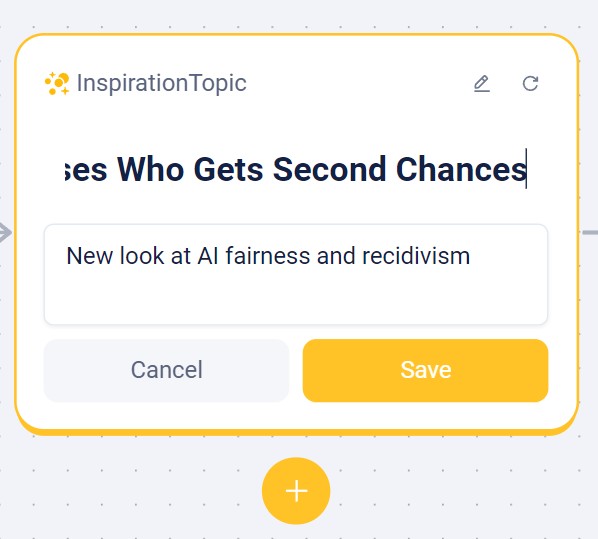
a. Idea refinement: aibo expands the initial idea into branches from different angles. Nodes support infinite expansion and manual editing—essentially a living mind map.
More tips
- Click “+” below a card for more topic suggestions.
- Click “✍” inside a card to edit it.
- Click “⭕” inside a card to regenerate.
- Click “➡” outside a card to open Inspiration Analysis.
 |  |
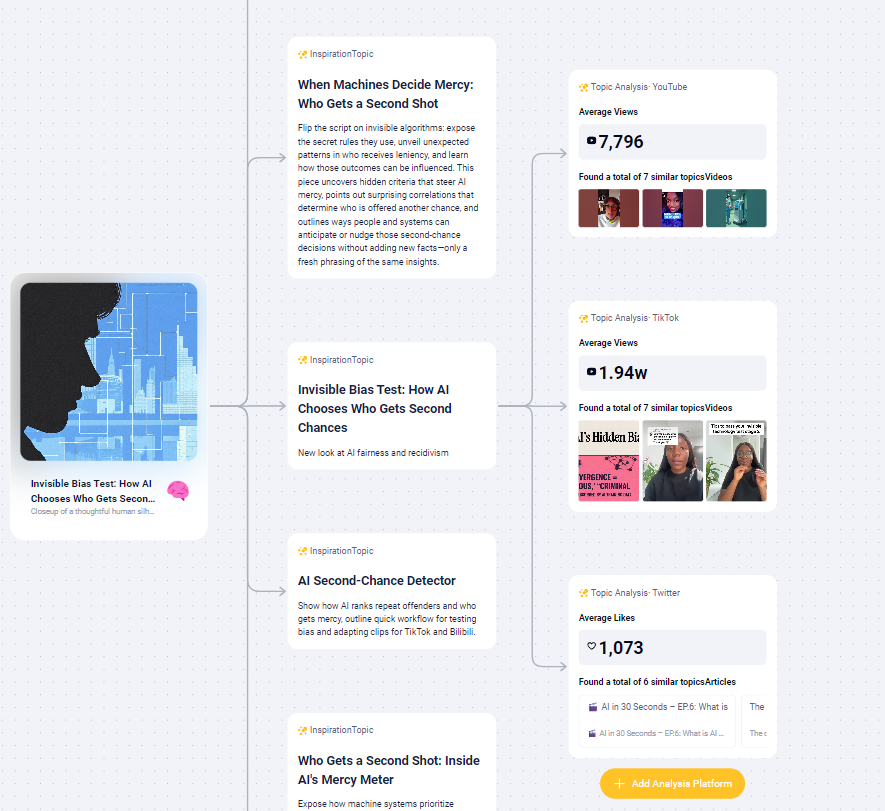
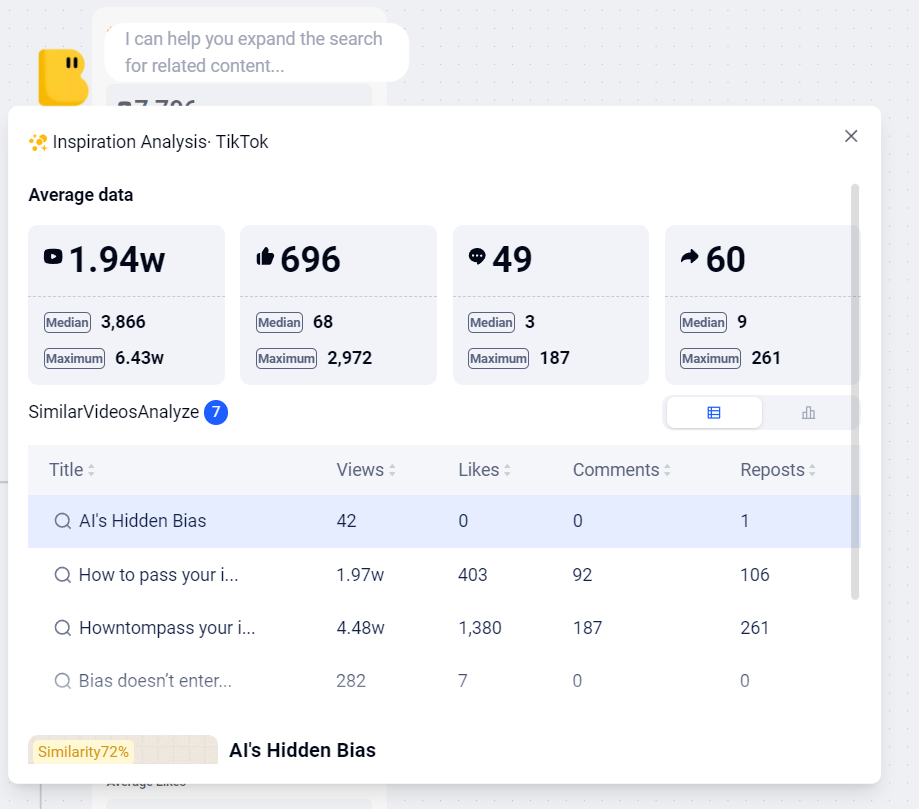
b. Market analysis: Choose one or more target platforms (Bilibili, Xiaohongshu, etc.). aibo becomes a search agent, crawling similar works and outputting:
- Historical averages/median/max metrics.
- Similar video analysis with views, likes, saves, and more.
- Analysis of representative videos.
 |  |
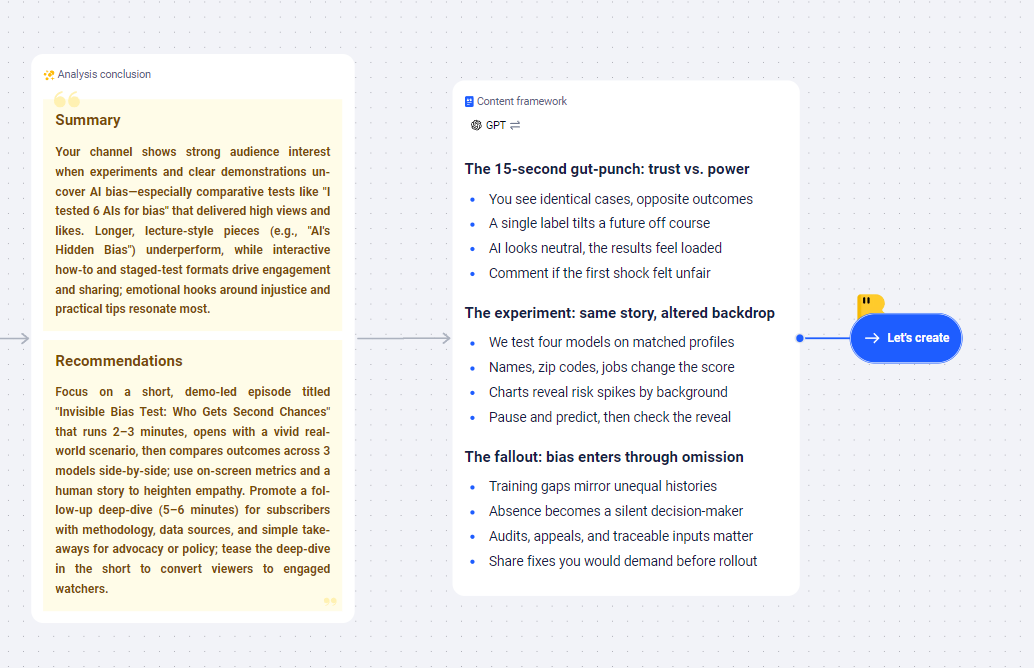
c. Insight extraction: Based on the data, aibo summarizes what makes hit content successful—its patterns, structure, and key hooks—to feed the next step.
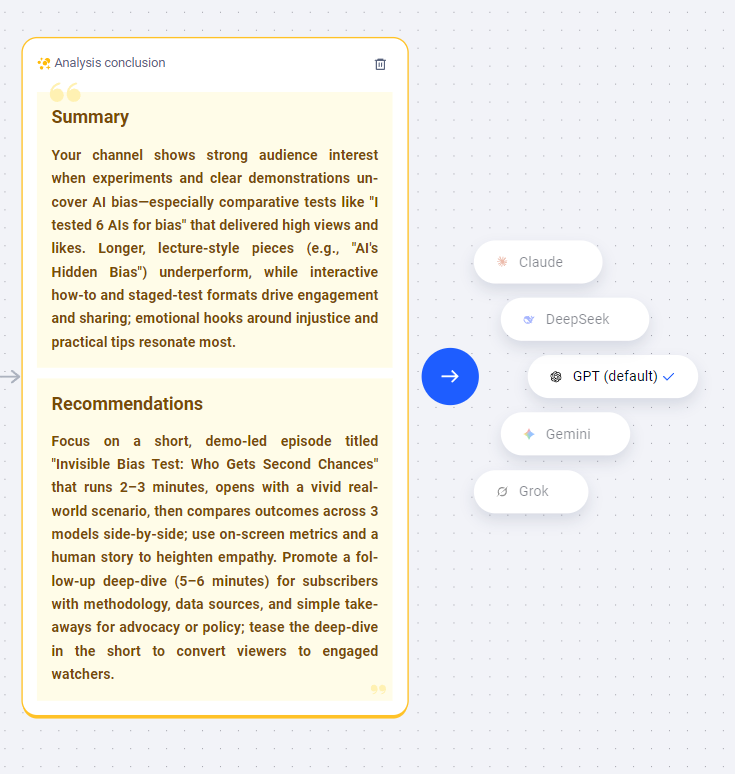
d. Outline generation: aibo synthesizes all context to generate outlines with different tones and structures. You can switch among up to five large models (qwen3 is default) or enter Fine-tune Mode to tweak manually.
 |  |
3. Advanced mode: Deep analysis
Inside the Market Analysis node click “Deep Analysis” to trigger a more granular breakdown. aibo dissects narrative structure, hooks, and value propositions for actionable guidance.
4. Inspiration input (supported links and how to use them)
After the cold start, open the Inspiration Canvas on the left to generate ideas and frameworks.
- Input any source—article, paragraph, page, or video link—to generate three related inspirations.
- No specific idea? Use the blind box so aibo suggests aligned but fresh ideas.
- Click the buttons below to regenerate as often as you like.
Choose a card to enter the canvas.
The canvas has four node layers from left to right. The first is the refined ideas that lock in direction.
- Nodes support infinite expansion, manual edits, and regeneration.

Next is the analysis node. Pick platforms and aibo will crawl data to show how similar works perform.
- Provide more detailed search constraints at the top.
- Click Deep Analysis for a structured breakdown.
Moving along your chosen branch, aibo blends your style with the insights to generate the outline.
5. How to use the outline stage
- In the last node, aibo provides frameworks based on all context.
- The new version supports up to five models (qwen3 default).
- Pick the framework you like and move on to creation.
- Not satisfied? Click the upper-right corner to enter Fine-tune Mode for manual edits.
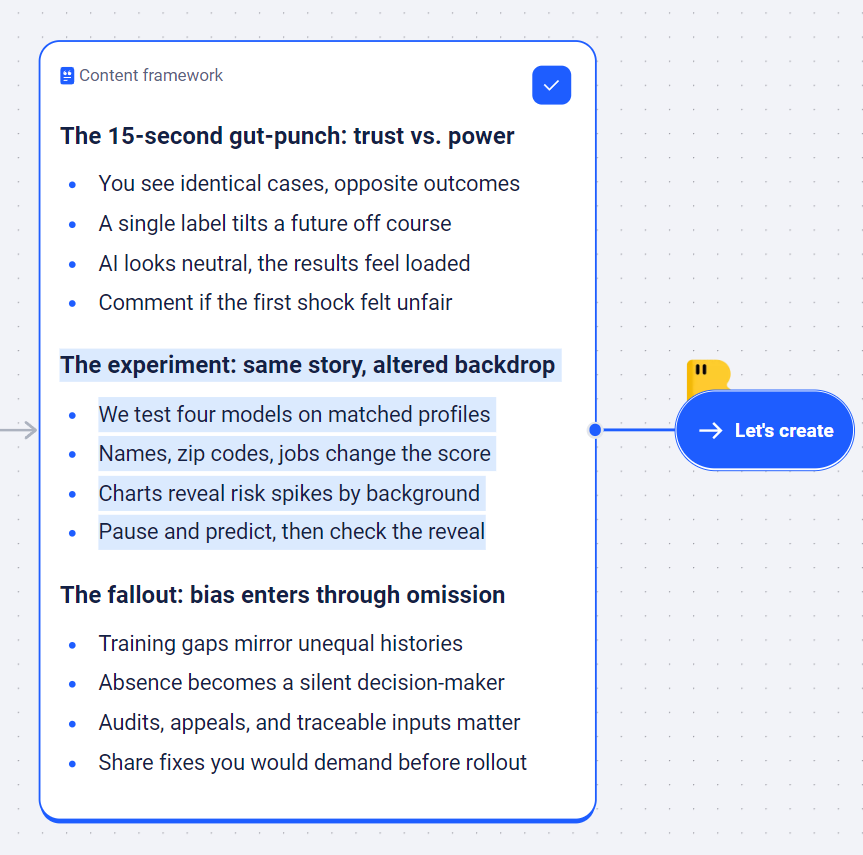
When your outline is ready, click “Start Creating” to open the Creaibo editor. This is a collaborative space where you and aibo build content together in real time.
✅ Editor Usage
1. Two ways to use the aibo editor
From the canvas (recommended): Entering from the canvas carries over all context, ensuring aibo stays on topic.
Create directly: Experienced creators can start with a title from scratch but will need to manage structure themselves.
After entering the editor you will be asked to select knowledge bases for this session. Once chosen, start writing.
2. The core completion feature
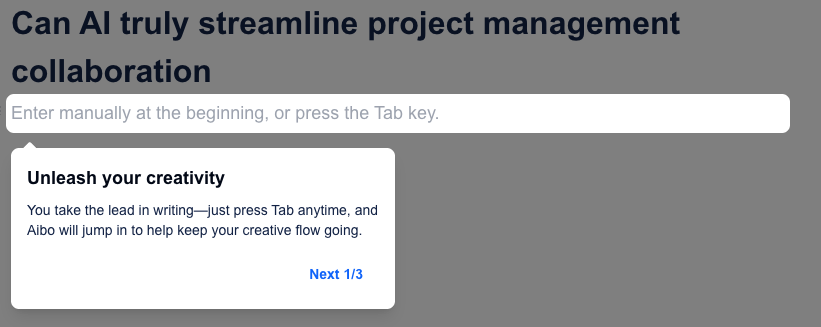
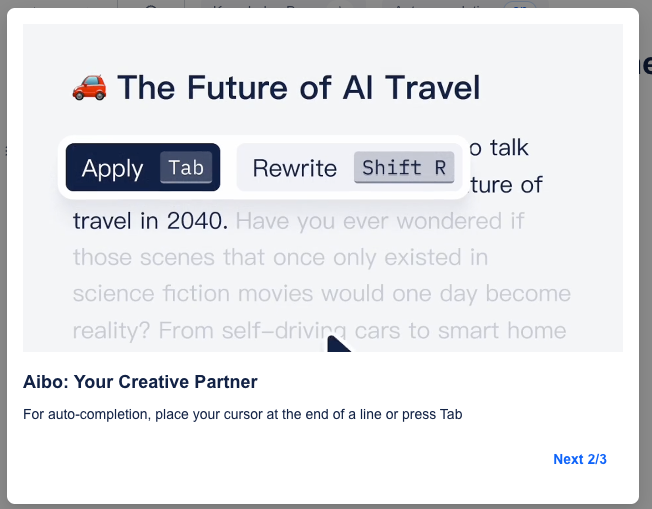
You do not need prompt engineering. When you pause, aibo auto-completes text that matches your persona and tone.
Press
Tabto accept orCtrl+Rto regenerate.Unlike other AI tools, aibo infers intent precisely and references the knowledge base to avoid hallucinations and keep citations traceable.
3. Personalization controls
Every creator writes differently, so we provide parameters for completion length and trigger speed. Click “Auto Completion” to adjust. 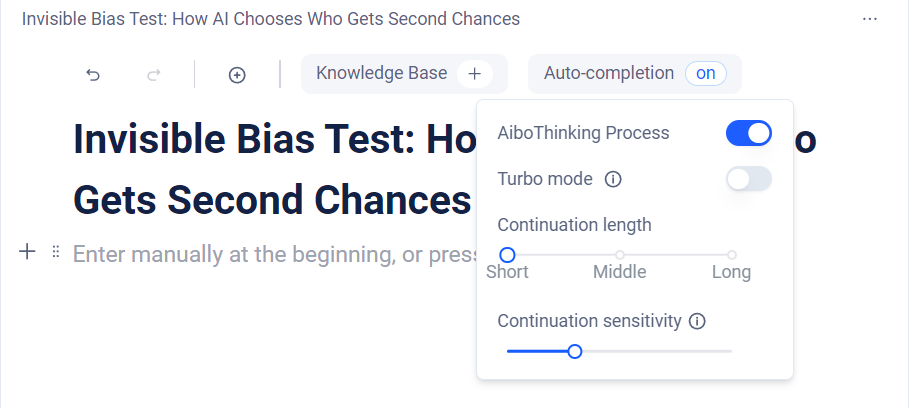
Completion length: Number of words in a completion.

Trigger sensitivity: The pause time before aibo fires. Lower numbers trigger faster.
Turbo mode: Calls a lighter model for faster drafts—great for zero drafts.
Adjust anytime while writing. Test combinations to find what suits you.
If you prefer no proactive help, turn the feature off. The editor switches to passive mode but you can still press
Tabto summon aibo on demand.
4. Rewrite and polish
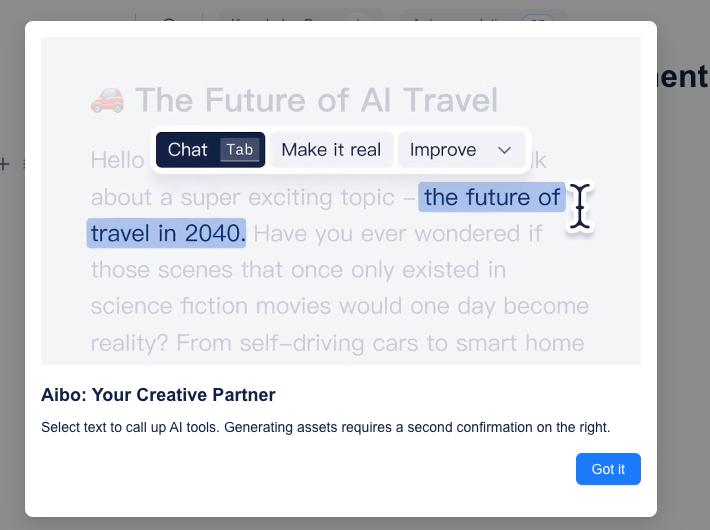
Highlight any text and describe how you want it changed (for example, “make this more vivid”). aibo rewrites it in your style and replaces the original. 
Back to the editor itself:
Click “+” in the top-left corner to import images, import text, or export drafts.

The Inspiration Canvas can be dragged freely or expanded mid-writing for quick reference.
| Shortcut / Action | Function | Tip |
|---|---|---|
| Tab | Accept completion / summon aibo | Use when aibo shows a suggestion or proactive mode is off |
| Ctrl+R | Regenerate completion | Get fresh ideas instantly if you dislike the current one |
| Highlight text | Open the quick menu | Trigger rewrites or multimodal generation as needed |
That covers the text workflow in the aibo editor. Next time we will introduce the aibo assistant.
✅ aibo Assistant Usage
The aibo assistant lives in the right sidebar of the editor. When tasks are idle you can chat with it there. The panel offers multiple settings:
- Online mode: Toggle aibo’s web access to fetch up-to-date information when timeliness matters.
- Deep thinking mode: Turn it on for complex, multi-angle questions. aibo uses stronger models and longer reasoning chains.
- Command hints: Type
/to view available commands for creation or search.
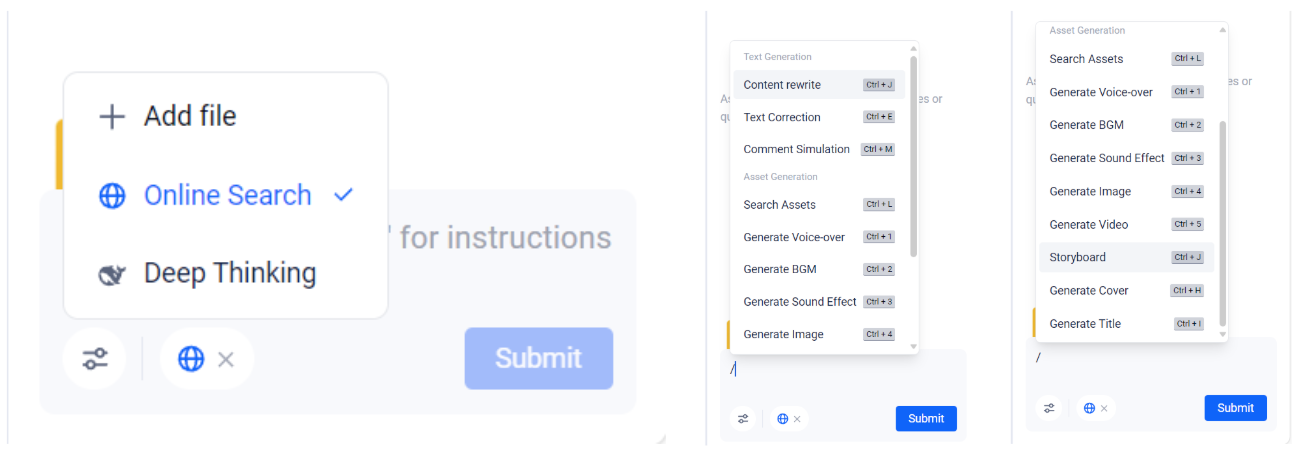
aibo can help you with many things, for example:
Complex research
- Discuss a series of questions or datasets. aibo combines knowledge bases and the web to answer.
It proactively infers intent based on editor context.
After you confirm, aibo triggers the needed feature and you can apply it with one click.
You can also initiate commands yourself to rewrite, proofread, or transform entire drafts.
Innovation: simulate user feedback
- Before publishing, ask aibo to simulate target-platform personas and output multiple virtual agents to comment on your work.
- These simulated comments help surface potential issues so you can optimize beforehand.
If you struggle with titles, let aibo generate ones tailored to different platforms, even cover images. Covers are part of its multimodal toolkit, which we will cover in the next section.
✅ aibo Multimodal Usage
aibo supports multimodal generation at any time. Highlight text and press Tab to send it as context for Q&A or generation; the text becomes part of the instruction automatically.
- Use it to search assets or generate covers, images, audio, and video.
Highlight commands
Besides Tab, highlighting text opens an even faster path. Select descriptive text in the editor, click Generate, and you will see five commonly used multimodal commands. Click any option and aibo converts the text into prompts behind the scenes—no chat needed. 
Start with images
- Pick a model.
- Choose aspect ratio and number of outputs, then generate.
- Click an image to regenerate or switch to Static → Dynamic animation.

Next, audio (sound effects, BGM, and voiceovers)
- Sound effects: Generate 5s or 10s clips such as jet engines, branches snapping, or night ambience.
- BGM: Create 30s/60s/90s/120s background tracks in moods like techy or gentle to match any video.
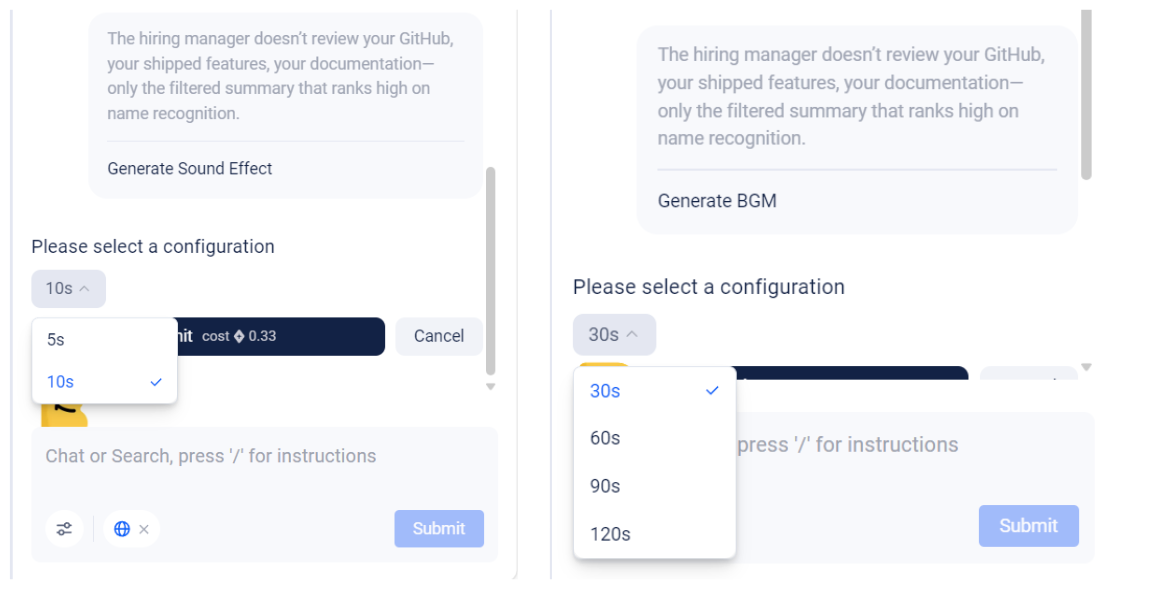
3. Voiceovers
- Generate character voices with different timbres instantly. Hover over a role to preview.
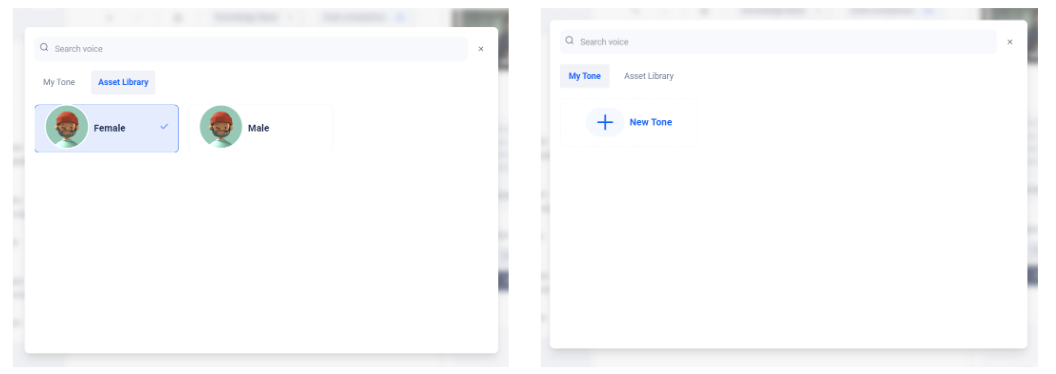
Beyond presets, you can clone your own voice.
- Click “New voice”, then choose “Upload audio” or “Start sampling”.
- Name the character and define its use case.
- Save to start using it.
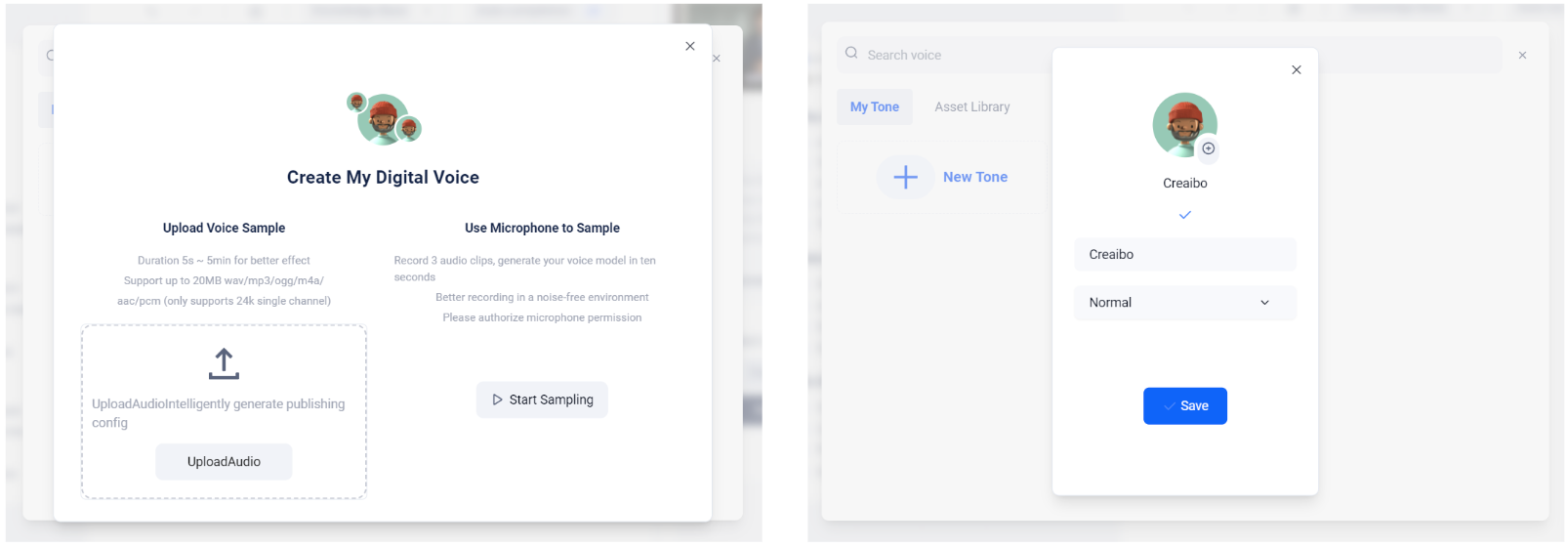
Video generation
Finally, video. aibo integrates multiple mainstream models and the latest releases. Choose resolution and duration, then generate with one click. High-resolution outputs take longer—please be patient.
After generation you can regenerate, download, adjust playback speed, or enable picture-in-picture. 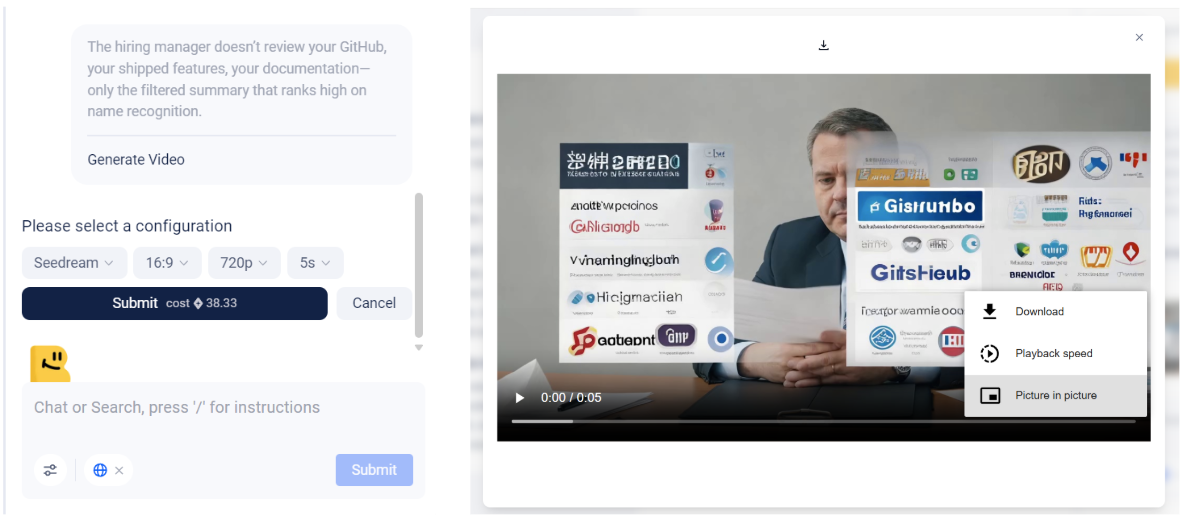
All multimedia assets (images, audio, video) are saved automatically in the Assets center and organized along a timeline. Preview, manage, download, or import them directly into editing tools like Premiere Pro or CapCut for secondary creation. 
To help you choose the right media strategy, here is a parameter overview:
| Asset type | Key parameters | Options |
|---|---|---|
| Image | Model, aspect ratio, quantity, motion | Depends on model: 16:9, 1:1, up to 4 images, static/dynamic |
| Sound FX | Length | 5 seconds, 10 seconds |
| BGM | Length, style/mood | 30/60/90/120 seconds; tech, elegant, etc. |
| Voiceover | Voice print | System presets, user-cloned voices |
| Video | Model, resolution, length | Varies by model: 720p, 1080p, 5–30 seconds |
⛱ Basic Module 2: Advanced Operations
Advanced module overview
Advanced Use 1: Install and use the plugin
Today we will look at the aibo browser plugin.
When browsing, we often discover valuable snippets that we want to store as inspiration. The plugin solves the capture-and-convert problem.
With the Creaibo browser extension you can capture inspiration in real time.
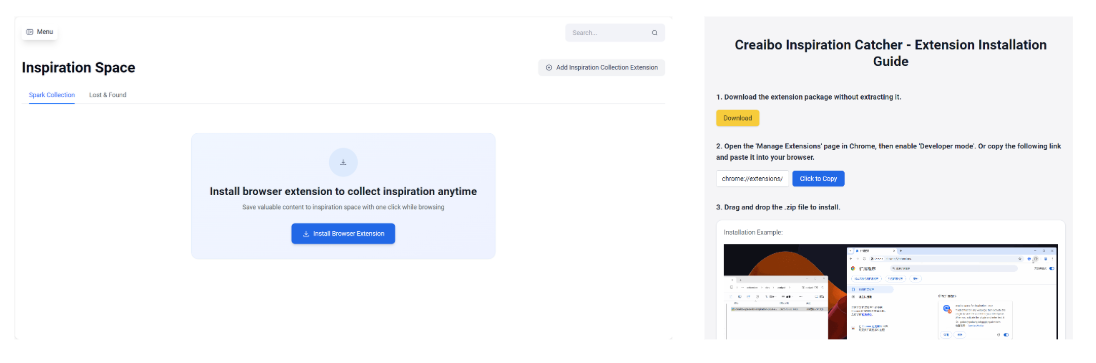
Installation guide
a. Open Inspiration Space and find “Add inspiration clipper” on the right to download the plugin.
b. Click “Install browser plugin”.
c. Follow the installation instructions.
d. Chrome, Edge, and Safari on macOS are supported today.
How to use it
a. After installation, refresh the page. You can now highlight any text to call the plugin.
b. When you highlight text, a Creaibo icon appears. Click it and choose “Collect” to save the text plus source link instantly.
Seamless integration
a. All collected snippets sync to the Inspiration Center in your Creaibo account. Review, organize, or turn them into a new Inspiration Canvas project with one click to kick off deep creation.
Give it a try!
Advanced Use 2: Storyboard scripts
This feature is designed for video creators. It provides a structured interface so you can organize scripts by scene, dramatically improving pre-production efficiency and consistency.
1. Feature details
- For each scene, aibo helps draft shot descriptions, framing, camera angles, dialogue, and audio cues.
2. Works with multi-segment video
- The feature integrates tightly with “Multi-segment Video”. After writing your storyboard you can generate a video clip for every shot.
- The system stitches them in order for preview and export, streamlining the pipeline from script to footage.

Turning a top YouTuber’s AI workflow into a product
Yesterday I watched a podcast from Dan Koe, a YouTuber with over a million followers. He shared how he leverages AI to produce viral content each year while only spending a few hours. Here is his process:
Analyze before creating: Jumping straight into writing after picking a topic often fails. Like a startup, every piece needs market research—see which content in this direction went viral and which flopped, then avoid pitfalls and optimize. He spends about 30 minutes by scraping data and using multiple AIs.
Organize further: After deciding the topic, find strong reference examples—such as the top N posts by likes. Doing this manually takes hours. Dan uploads videos to AI, which summarizes why they work in minutes.
Refine references: Extract key takeaways rather than copying. What structure did they use? Why did people resonate and hit like? Apply those lessons to your own work. Use AI to build the framework and co-write the draft if needed. For more on hooks and resonance theory, check out my friend Tim’s deep dive.
After listening I realized this workflow is identical to the AI product we have been building for a year—ours is even simpler. Topic analysis, idea analysis, and creative references all happen in the Inspiration Canvas. The optimal workflows all converge eventually, because they come from real creator experience.
Note that both Dan and our product emphasize originality. Viral hits are hard to replicate. One-click copying or rewriting might look efficient short-term, but it erodes your ability to craft unique, valuable content. If everyone copies the same hit, nothing stands out.
This workflow teaches you to absorb the good, then inject your own traits to create resonant, human content. Come try it in the product and find your direction.